Operating memo
Adobe Subscription on Multiple Computers: A Small-Team Setup Check
Separate Adobe installation, sign-in and active use, then record device ownership and a complete changeover check for named users and contractors.

What to watch
Four controls to keep visible while you run the playbook.
- 01
Download or installation is not the sign-in limit.
- 02
Confirm the named user and actual entitlement.
- 03
Two devices may be signed in; active use is limited to one.
- 04
Document sign-out, activation, files and recovery separately.
General business education, not legal, tax, employment, financial, security, or insurance advice. Verify material requirements for the actual business and jurisdiction.
Illustrative external workspace photograph; the screens do not demonstrate an Adobe license or a tested account configuration.
Adobe's current device guidance distinguishes downloading, signing in and active use. It says apps can be downloaded on multiple devices, the account can be signed in on two at a time, and active app use is limited to one device at a time. The account belongs to its named user; two sign-ins do not provide two people with permission to share it.
This guide applies that distinction to a small-business desktop-and-laptop workflow. It is not a method for bypassing activation limits. If your organization uses a different licensing arrangement, ask its Adobe administrator about the applicable terms before applying a general named-user checklist.
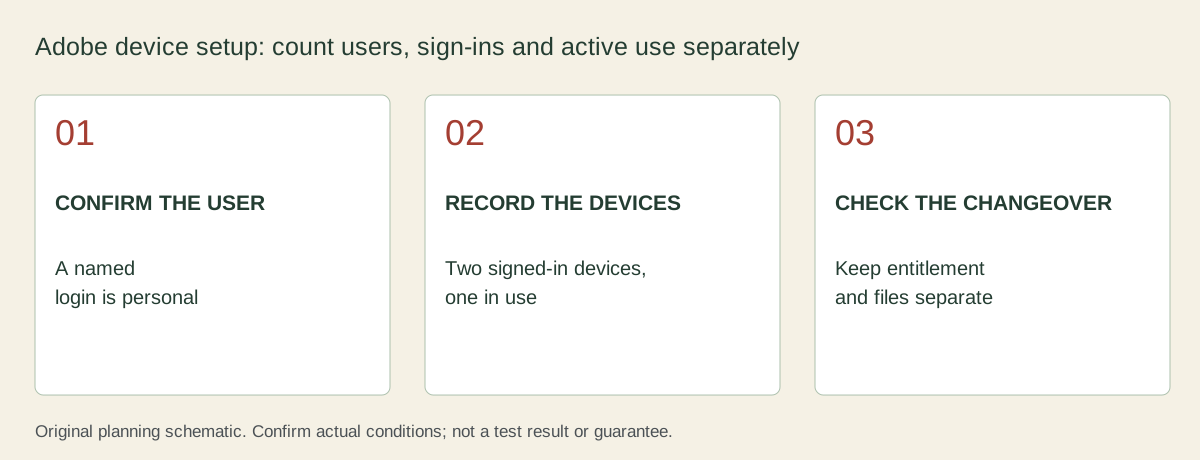
Keep three different questions separate
The official device-limit page, updated September 25, 2026 and checked October 17, explains these limits. Check it again when planning a change because product and account rules can change.
| Question | What Adobe's linked guidance establishes | What it does not establish |
|---|---|---|
| Can I download the apps to another device? | Downloads can be made on multiple devices | That every device meets an app's system requirements or has an active sign-in |
| Can I remain signed in? | Up to two devices at the same time | That two employees may use one account |
| Can both computers actively use the apps? | Active use on one device at a time | That different app names remove the limit |
| Can I give a colleague my login? | The account is for its named user | That a Teams label authorizes password sharing |
A desktop and travel laptop used by the same person are a different situation from a designer and contractor working concurrently. Write down the users before counting the computers.
Make an inventory without storing passwords in it
Use one row per intended user and device. Record which account or organization profile supplies access, the needed app, the device owner and who can approve changes. Keep authentication secrets out of this table.
For a small team, the admin-access map helps identify the owner and administrator. Distinguish account ownership from having a particular computer in your office. Access to a machine is not evidence of a license assignment.
USER AND ENTITLEMENT
Named user:
Plan/product and source of entitlement:
Personal or organization-managed profile:
Administrator/contact who confirms the arrangement:

DEVICE PLAN
Computer name and owner:
Required app/version and system requirements checked:
Installed:
Signed in / signed out / not checked:
Intended active-use period:
Other signed-in devices belonging to this user:

SWITCH CHECK
Work saved and file location confirmed:
Required fonts, linked files and plug-ins identified:
Approved sign-out/sign-in action:
Destination app opened and entitlement confirmed:
Test file opens correctly:
Outstanding sync, access or administrator issue:
The installed/signed-in fields record what you actually checked. An installation folder alone does not prove the app can launch with the needed entitlement.
Switch devices using the supported route
Before switching, save work and confirm where the project and linked files live. Check that the destination computer supports the app and has the relevant resources. A missing font or external asset is a separate issue from account activation.
Follow Adobe's switching-computers instructions for activation and deactivation. If you have reached the sign-in limit, use the supported sign-out route for a device you are authorized to manage. Do not deactivate a colleague's device based on a guessed account association.
Test the intended destination before travel while you have connectivity and access to the authorized account. Launch the required app and open a non-sensitive test file with the same kinds of linked resources. This is a readiness check; it does not establish an unlimited offline-use period or guarantee every project will work.
If you cannot access the account or its recovery method, stop the switch and involve the owner or administrator. The account-recovery test guide keeps that preparation separate from an urgent sign-in attempt.
Plan for another person with a separate access decision
Adobe's account-sharing policy says an account is for one person, including within a Teams plan. Adding a colleague is not solved by handing over the existing user's password or describing the second computer as a backup.
Ask the administrator to confirm the appropriate entitlement for that colleague and how it should be assigned. This guide does not specify a price or promise that a particular upgrade solves every organization-specific requirement. Confirm the product, account type and actual quote through Adobe or your authorized supplier.
Worked example: desktop, laptop and a contractor
This is a fictional workflow, not a client incident or tested configuration. Casey owns a small design business and uses a studio desktop and a travel laptop. A contractor, Sam, needs to work on the project at the same time.
| Planned activity | Record the correct question | Next action |
|---|---|---|
| Casey switches from desktop to laptop | Same named user; is the laptop signed in, compatible and ready? | Save work, check sign-in state and open a test project on the laptop |
| Casey also wants a third computer ready | Which devices are currently signed in, and what does the actual plan permit? | Use the supported device-management route or ask the administrator; do not assume a third persistent sign-in |
| Sam works while Casey works | A separate person needs appropriate access | Confirm Sam's own entitlement and project-file permissions; do not share Casey's account |
| A test project lacks a linked image | Is this a file dependency rather than activation? | Fix the file reference and retest; buying another subscription is not evidence that the link will be repaired |
Casey's completion record separates “license state checked” from “project opens correctly.” Both need evidence before calling the laptop ready. The contractor's access remains an administrator decision until confirmed.
Record the result and revisit it when the setup changes
Store the check date, official guidance links and any administrator confirmation with the inventory. Recheck after a device replacement, staff change or licensing change. Keep uncertain entries marked unresolved rather than copying an old forum answer into a current policy record.
A reliable setup note lets the next person see who is licensed, which computers were checked and what still needs attention. Device counts alone cannot answer those questions.
Download the editable planning record (TXT). Blank fields are for your own observations.
Next operating moves
Keep the decision connected to the rest of the channel.

Admin Access and Password Map for Owner-Led Businesses
A map of who controls bank accounts, domains, software, social profiles, analytics, payment tools, and other critical business access.
Read the operating memo
Test Account Recovery for the Tools That Run the Business
Verify business-owned email, MFA, backup administrators, recovery codes, vendor support, and emergency access before a lockout.
Read the operating memo